




You deleted something you needed. Maybe you emptied the Recycle Bin, formatted the wrong USB drive, or a partition vanished after a Windows update. The good news is that when you delete a file, it may still remain on your storage drive until new data replaces the space it occupied. The bad news is that every new write to that drive can destroy them. This guide compares 10 deleted file recovery software options: Recuva, PhotoRec, DMDE, Wondershare Recoverit, R-Studio, Disk Drill, EaseUS Data Recovery Wizard, Windows File Recovery, TestDisk and Stellar Data Recovery. It started as a short video on three of them (Recuva, PhotoRec and DMDE) and expands into a full decision guide.
The short answer
- For a simple, free option on Windows: try Recuva with its easy-to-use interface. You can also try the free versions of EaseUS or Stellar if you only need to recover a small amount of data.
- Best free option for a damaged file system or camera card: PhotoRec, with DMDE as a more visual alternative.
- Lost partition: TestDisk first, then recover files.
- Complex cases (RAID, failing drives, imaging): R-Studio, DMDE or Disk Drill.
- Beginner-friendly paid option with extras: Recoverit, Stellar, EaseUS or Disk Drill. Compare free limits and prices first.
- Physically failing drive with irreplaceable data: stop and consider a professional lab (see below).
No tool recovers everything, and none can guarantee success.
What deleted file recovery software can and cannot do
When a file is deleted, the system usually removes its reference from the file system and treats the storage space it used as available for new data. The data usually stays until something writes over it. Recovery software searches for those leftovers in two ways:
- File-system-based recovery reads what is left of the file system (such as NTFS records). When it works, you can get original names, folders and dates back.
- Signature-based recovery (file carving) ignores the file system and looks for known file headers. It works when the file system is damaged or formatted, but it often returns files without original names or folders. PhotoRec’s documentation describes this approach.
It cannot reliably help when:
- The space has been overwritten.
- The drive is an SSD with TRIM active. Disk Drill states that deleted files on a TRIM-enabled SSD likely will not be detected because the data is erased soon after deletion, and DMDE says recovery on modern SSD or SMR disks is often impossible.
- The data is encrypted and you do not have the key or password (Stellar notes that BitLocker recovery needs the password).
- The drive is physically failing and software scans make things worse.
Quick comparison table
| Tool | Best For | Platform | Pricing Model | Main Strength | Official Link |
|---|---|---|---|---|---|
| Recuva | Simple Windows undelete | Windows (system requirements list Windows 10 and older; Windows 11 not listed) | Freemium (Free; Pro listed at $24.95) | Easy graphical wizard, secure overwrite | ccleaner.com/recuva |
| PhotoRec | Camera cards, damaged or formatted media | Windows, macOS, Linux, BSD and more | Free, open source (GPL) | Ignores the file system, 480+ file extensions | cgsecurity.org/wiki/PhotoRec |
| DMDE | Directory-structure recovery, advanced users | Windows, macOS, Linux, DOS | Freemium (free up to 4,000 files per folder) | Rebuilds folder structure, RAID builder, imaging | dmde.com |
| Wondershare Recoverit | Beginners wanting a guided tool | Windows, macOS | Freemium (free tier plus subscription/perpetual plans) | Easy workflow, bootable recovery, NAS/Linux options | recoverit.wondershare.com |
| R-Studio | RAID, network and professional recovery | Windows, macOS, Linux | Paid (listed from $49.99); demo available | Broad file-system support, RAID reconstruction | r-studio.com |
| Disk Drill | Visual scan results, extras like backup | Windows, macOS | Freemium | Recovery-chance indicator, byte-level backup | cleverfiles.com/data-recovery-software.html |
| EaseUS Data Recovery Wizard | Beginners wanting a polished GUI | Windows, macOS | Freemium (free up to 2 GB per vendor) | Simple interface, scan-result import/export | easeus.com/data-recovery-software |
| Windows File Recovery | Free Microsoft-supported undelete | Windows 10/11 | Free | No recovery size cap, official Microsoft tool | Microsoft support page |
| TestDisk | Lost partitions, boot repair | Windows, macOS, Linux and more | Free, open source (GPL) | Partition table and boot sector repair | cgsecurity.org/wiki/TestDisk |
| Stellar Data Recovery | Beginner-to-intermediate Windows users | Windows (macOS version sold separately) | Freemium (free up to 1 GB; paid tiers) | BitLocker, imaging and bootable options in higher tiers | stellarinfo.com/windows-data-recovery.php |
Pricing and free limits depend on edition, region and promotions. Treat figures as a snapshot.
10 Deleted File Recovery Software
1. Recuva
- Best for: quick, free undelete on Windows.
- Official links: Product page · Download page
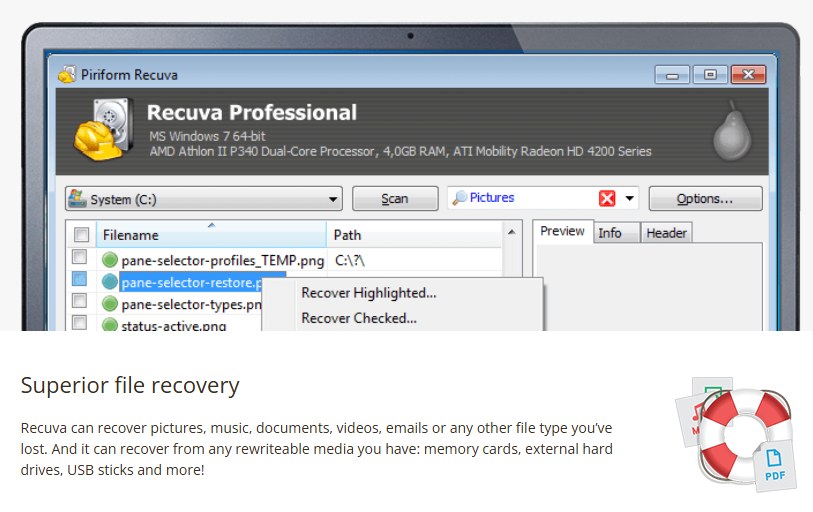
- What it is: Recuva is published by Piriform/CCleaner (Gen Digital). Its page says it recovers from Windows computers, the Recycle Bin, camera cards and MP3 players, and from other rewritable media such as external drives and USB sticks.
- Platforms and scenarios: Windows. The download page lists Windows 10, 8.1, 7, Vista and XP, 32- and 64-bit. Windows 11 is not named there, so check compatibility on your own machine before relying on it. Free and Pro editions are for home use only.
- Key features: deep scan mode, recovery from damaged or newly formatted drives (vendor claim), and secure overwrite, which deletes files permanently.
- Free vs paid: The free edition includes advanced file recovery. Pro (listed at $24.95) adds virtual hard drive support, automatic updates and priority support.
- Advantages: very approachable, low cost, includes secure deletion.
- Disadvantages: Windows only. The Pro-tier extras do not add recovery power for typical cases. Compatibility with the newest Windows releases is not stated on the page.
- Practical use cases: recovering a document you shift-deleted, or photos from a camera card you plug into a PC.
- Who should choose it: Beginners who want to recover recently deleted files from a hard drive or memory card after a simple deletion.
Compared with the rest: easier than PhotoRec or TestDisk, but less suited than DMDE or R-Studio to damaged file systems or complex layouts.
2. PhotoRec
- Best for: recovering files when the file system is damaged, formatted or unreadable.
- Official links: PhotoRec page · Download page
- What it is: a free, open-source file-carving tool from CGSecurity (author Christophe Grenier), distributed under GPL v2+. The page lists version 7.2 (22 February 2024) as the latest stable release.
- Platforms and scenarios: runs on Windows, macOS, Linux, the BSDs and more. It works with hard disks, memory cards, USB drives, optical discs and disk images (DD raw and EnCase E01).
- How it works: PhotoRec searches the storage device directly, looking for known file patterns instead of relying on the file system to locate deleted data. Despite the name, it recovers more than photos. The project lists more than 480 file extensions (about 300 file families). It reads the source in read-only mode.
- Key features: works even if the file system is badly damaged; an online checker lets you test whether a sample file type is supported.
- Free vs paid: fully free, no recovery cap.
- Advantages: no cost, no size limits, broad media and file-type support, open source.
- Disadvantages: menu-driven, not a point-and-click app. Files recovered by signature often lose their original names and folder structure, so you may be sorting thousands of generically named files. Heavily fragmented files may not recover whole.
- Practical use cases: a formatted SD card from a camera, a corrupted USB drive, a drive whose file system will not mount.
- Who should choose it: comfortable users who value free, unlimited recovery over convenience.
Compared with the rest: it solves file recovery. For a lost partition, use TestDisk first. The two are companion tools from the same project.
3. DMDE

- Best for: getting folder structure and filenames back, and complex layouts, at low cost.
- Official links: Product page · Download page · Paid options
- What it is: DMDE (DM Disk Editor and Data Recovery Software) is developed by Dmitry Sidorov. The site shows version 4.4.4 with a 4.5.0 beta.
- Platforms and scenarios: Windows, Linux, macOS and DOS. File-system support includes FAT12/16/32, exFAT, NTFS, ReFS, Ext2/3/4, HFS+/HFSX, APFS and btrfs. It works with HDDs, SSDs, USB drives, memory cards, RAID and disk images. It is portable and runs without installation.
- Key features: quick scan and full scan, raw (signature) recovery as a fallback, a simple partition manager that can restore removed partitions, disk imaging and cloning, a RAID constructor and a disk editor. DMDE states the source disk is not modified during normal file recovery.
- Free vs paid: the free edition recovers up to 4,000 files from one chosen folder, with unlimited repetitions. Paid editions remove that restriction and allow bulk folder recovery. Check the buy page for current prices.
- Advantages: strong at reconstructing directory structures, generous free tier, includes imaging and partition tools.
- Disadvantages: the interface is minimal and technical. DMDE itself warns that recovery on modern SSD or SMR disks is often impossible and that after ransomware-style encryption recovery is often impossible.
- Who should choose it: Beginners with some technical knowledge and IT technicians who need to recover files while keeping their original names and folder structure whenever possible.
Compared with the rest: more visual than PhotoRec and often better at keeping structure, but less hand-holding than Recuva or Recoverit.
4. Wondershare Recoverit
(Full section below. See “Wondershare Recoverit: a balanced look“.)
- Best for: users who want a guided, beginner-friendly workflow, plus optional extras such as bootable recovery and video repair.
- Official links: Product site · Free edition · Pricing
5. R-Studio
- Best for: professional, RAID, network and multi-file-system recovery.
- Official links: Product site · Download page
- What it is: R-Studio is from R-Tools Technology Inc. The site lists it “from $49.99”.
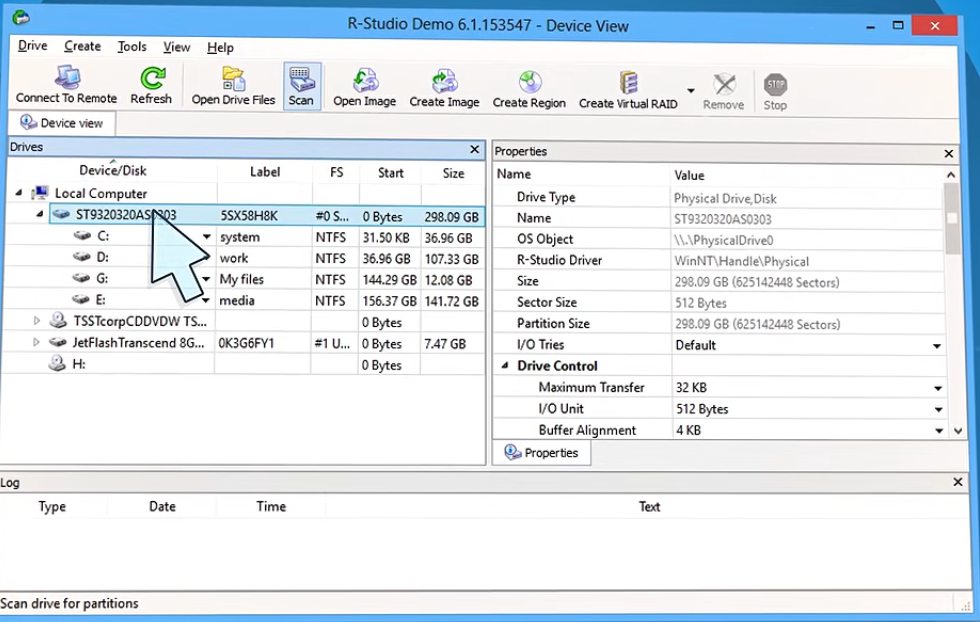
- Platforms and scenarios: Windows, macOS and Linux versions. Supported file systems include NTFS/ReFS, FAT/exFAT, HFS+/APFS, UFS, Ext2/3/4 and XFS, with raw recovery for damaged or unknown file systems. It supports BitLocker volumes, dynamic volumes and Storage Spaces.
- Key features: an advanced RAID reconstruction module (RAID 0, 1, 4, 5, 6 and nested layouts, with automatic parameter detection for RAID 5/6), recovery over a network, disk imaging, a hex editor, file previewer, S.M.A.R.T. monitoring and an Emergency version that runs from USB or disc when Windows will not boot. Professional editions integrate with hardware imagers such as DeepSpar.
- Free vs paid: a demo is offered. I could not confirm the demo’s exact limits from the pages I fetched, so check the download page.
- Advantages: very broad capabilities, strong for complex storage setups, mature imaging tools.
- Disadvantages: denser than consumer tools and less suited to casual use. Some features are limited to the Technician edition.
- Who should choose it: IT staff, technicians and advanced users with RAID, NAS or multi-OS needs.
Compared with the rest: more capable than Recuva or EaseUS for complex structures; more of a toolkit than a wizard.
6. Disk Drill
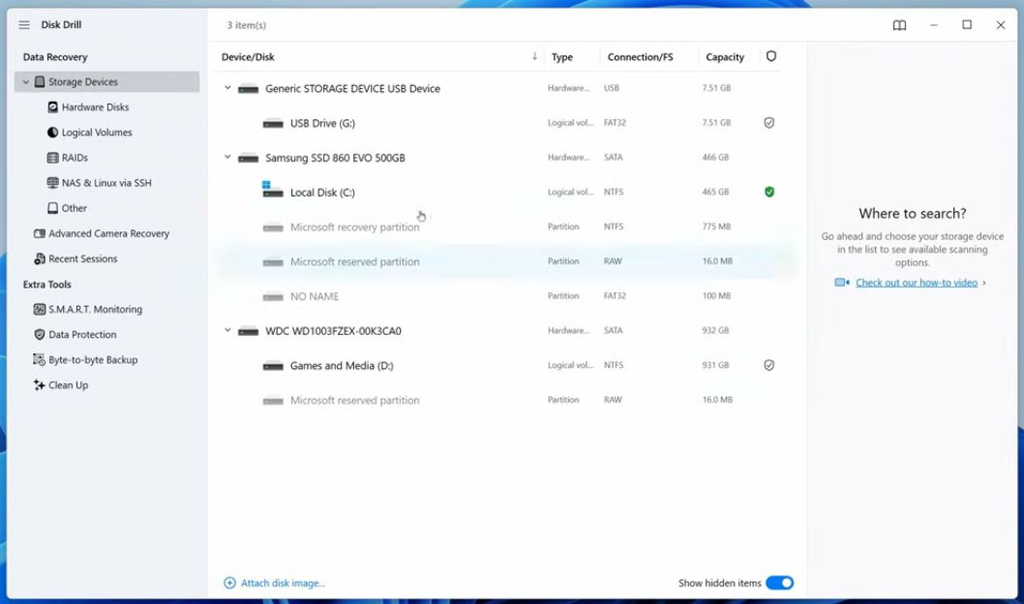
- Best for: users who want a visual scan with recovery-chance indicators and protective extras.
- Official links: Windows product page · Download
- What it is: Disk Drill is made by CleverFiles Inc. The Windows page lists Disk Drill 6.3 for Windows 10–11 (64-bit) and Windows 11 ARM, and a macOS version also exists.
- Key features: a recovery-chance indicator and file preview, byte-level backup (useful for failing drives), Recovery Vault (an extended Recycle Bin), S.M.A.R.T. monitoring, and the ability to mount scan results as a drive. The vendor lists support for FAT16/FAT32/exFAT, NTFS, ReFS, HFS/HFS+, APFS, Ext2/3/4 and BTRFS, plus RAW disks. Depth of support can vary by file system, so check the vendor’s system-requirements page.
- Free vs paid: the Windows page says you can recover up to 100 MB for free. Another official CleverFiles page I fetched states 500 MB, so confirm in the app at download. The data protection tools remain free.
- Advantages: polished interface, helpful pre-recovery indicators, useful extras.
- Disadvantages: the free allowance is small. The disk-imaging and protection extras do not help if the data is already gone. Its own TRIM note applies to SSDs.
- Who should choose it: users who want a friendly interface and who might also back up a drive before scanning.
Compared with the rest: a similar audience to Recoverit, EaseUS and Stellar. Its chance indicator and imaging are the differentiators.
7. EaseUS Data Recovery Wizard
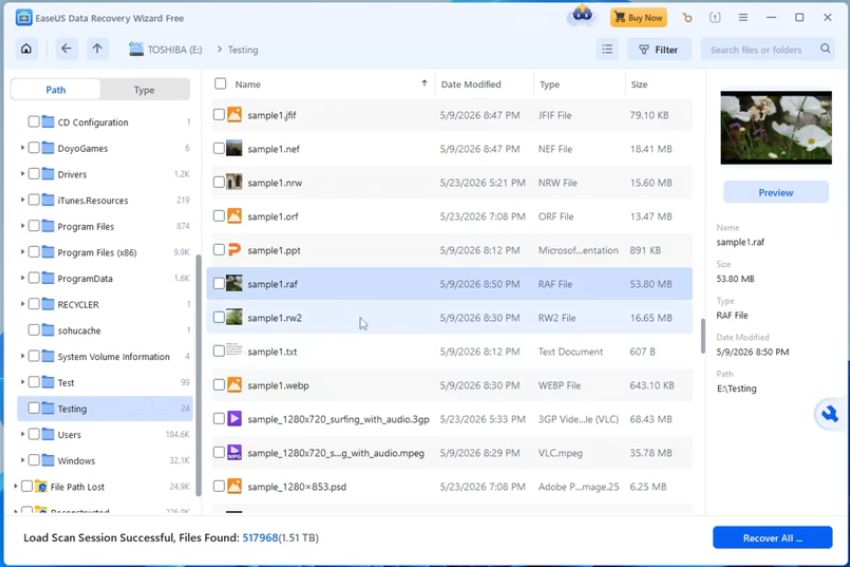
- Best for: beginners who want a wizard-style tool with a free trial of a few gigabytes.
- Official links: Product page · Free edition
- What it is: EaseUS Data Recovery Wizard for Windows and macOS, in Free, Pro and Technician editions. The vendor page states the free edition recovers up to 2 GB. Older reviews quote 1 GB, so confirm when you download.
- Platforms and scenarios: vendor page lists recovery from HDD, SSD, SD cards, USB drives and, in Pro, RAID and NAS. Scenarios include deletion, formatting, RAW drive errors, partition loss, OS crashes and virus attacks.
- Free vs paid: Free caps recovery at 2 GB. Pro is unlimited. I could not verify current Pro prices from the fetched page, so check the pricing page.
- Advantages: clean interface, generous free allowance relative to some peers, scan-result import/export (per its edition list).
- Disadvantages: one reviewer on EaseUS’s own page notes it can be slow in some operations, and the full version is not cheap. Third-party comparison pages often rank it differently, so form your own view from the free scan.
- Who should choose it: beginners with moderate data who want a guided flow.
Compared with the rest: more polished than Recuva; free allowance bigger than Recoverit’s or Disk Drill’s per the vendors’ own pages; less technical than DMDE or R-Studio.
8. Windows File Recovery
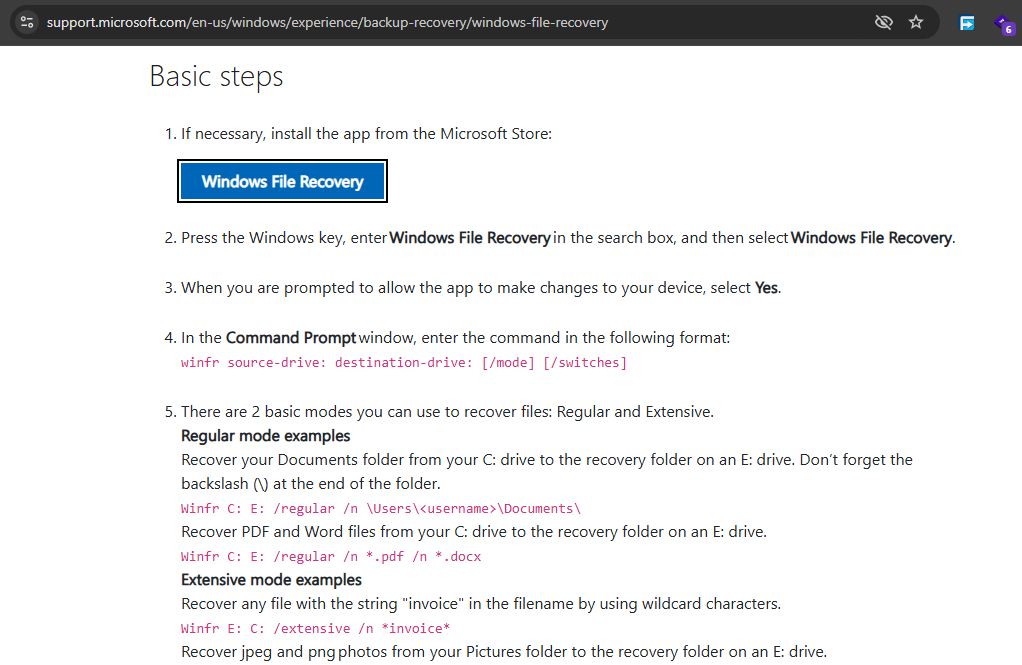
- Best for: free, Microsoft-supported recovery on Windows without third-party software.
- Official link: Microsoft Support: Windows File Recovery (The Microsoft Store listing link is unverified; install from the Store through the Start menu as Microsoft’s page describes.)
- What it is: a command-line app from the Microsoft Store, not a conventional graphical recovery program. The syntax is
winfr source-drive: destination-drive: [/mode] [/switches]. - Modes: The tool offers a Regular mode for healthy NTFS drives, along with two other choices: Segment, which searches NTFS file record segments, and Signature, which identifies files by their headers and works with different file systems. Microsoft says non-NTFS file systems are supported only by extensive mode and suggests starting with Regular if unsure. There are also NTFS-specific modes.
- Platforms: Compatible with Windows 10 and Windows 11, although some sources specify that Windows 10 version 2004 (build 19041) or a newer release is required. Note that Microsoft’s support for Windows 10 ended on 14 October 2025.
- Free vs paid: free, with no stated recovery cap.
- Advantages: official, free, no installer from an unknown source, scriptable.
- Disadvantages: command-line only, no preview, easy to mistype a command. It needs a separate destination drive.
- Who should choose it: comfortable users, administrators, anyone who wants a free official first attempt on a recent NTFS deletion.
Compared with the rest: it overlaps with PhotoRec on signature recovery but is limited to Windows. It is less forgiving than Recuva.
9. TestDisk
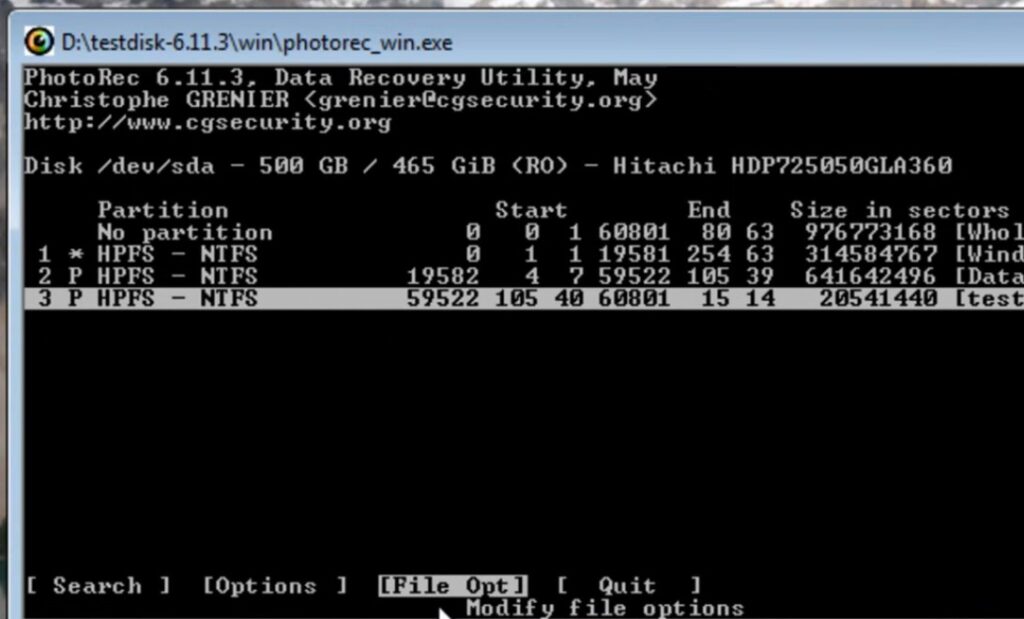
- Best for: lost or deleted partitions and non-booting disks caused by software faults or human error.
- Official links: TestDisk page · Download
- What it is: PhotoRec’s companion from CGSecurity, also free, open source (GPL v2+), version 7.2 (22 Feb 2024) listed.
- What it can do: fix partition tables and recover deleted partitions; recover or rebuild FAT32 and NTFS boot sectors; fix FAT tables; repair an NTFS MFT using its mirror; locate ext backup superblocks; undelete files from FAT, exFAT, NTFS and ext2; and copy files from deleted partitions. It can find lost partitions across a long list of file systems, including NTFS, FAT, exFAT, ext2/3/4, HFS+, APFS and btrfs.
- Platforms: Windows, macOS, Linux, BSD, DOS and others.
- Free vs paid: fully free.
- Advantages: can fix the underlying problem rather than just copying files, and it is powerful with documentation to match.
- Disadvantages: text/menu interface; writing a new partition table is a real change to the disk, so read the steps first. If the drive is failing, avoid write operations until you have a copy.
- Who should choose it: anyone whose drive shows as unallocated/RAW after a partition mishap.
Compared with the rest: TestDisk is for partition recovery; PhotoRec is for file recovery. They can be complementary: TestDisk restores the structure, and PhotoRec is the fallback for files when the structure cannot be fixed.
10. Stellar Data Recovery
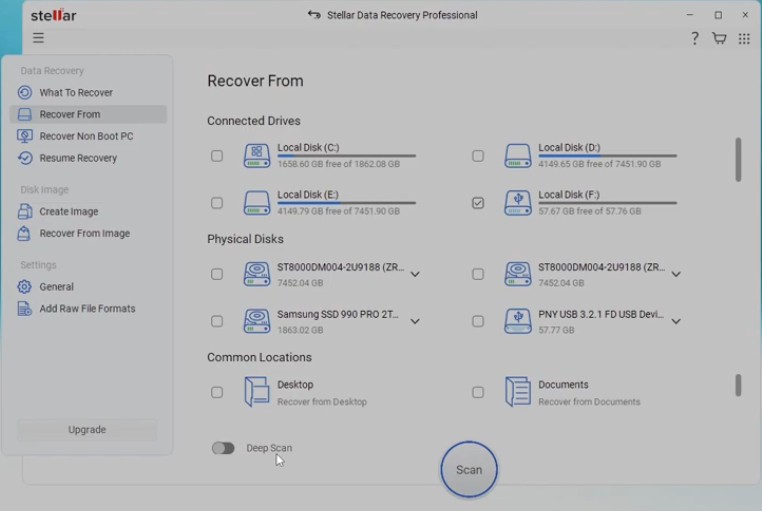
- Best for: Windows users who want a guided tool, with optional bootable media and imaging features.
- Official links: Windows product page
- What it is: Stellar Data Recovery for Windows, from Stellar Information Technology Pvt. Ltd. The page lists version 14.0.0.0 and says it was previously called Stellar Phoenix.
- Platforms and scenarios: Windows 11, 10, 8.1 and 8, plus Windows Server 2022, 2019 and 2016. The vendor lists NTFS, exFAT, FAT16 and FAT32 and drives up to 16 TB. Scenarios include deleted files, lost or RAW partitions, formatted drives, encrypted (BitLocker) drives, CD/DVD media, and crashed PCs via bootable media.
- Free vs paid: the free edition recovers up to 1 GB. At the time of checking, the website offered three plans: Standard, Professional, and Technician, with discounted prices of $59.99, $79.99, and $99.99, respectively. Professional adds non-bootable-system recovery, disk imaging, S.M.A.R.T. alerts and photo/video repair. Technician adds RAID recovery.
- Inconsistency to note: one Stellar support article says lost-partition recovery needs the Professional or Premium edition, while the current product page lists lost-partition recovery under Standard, so confirm before buying.
- Advantages: The software comes in different versions, allows you to stop a scan and pick up where you left off, and can recover data from BitLocker-protected drives if you have the required password.
- Disadvantages: useful extras sit in higher tiers; edition details are inconsistent across pages.
- Who should choose it: users who want one tool covering deletion through failed boot, and don’t mind choosing an edition.
Compared with the rest: similar to Recoverit, EaseUS and Disk Drill in audience. Differs through its edition structure and RAID option in Technician.
Wondershare Recoverit: a balanced look
What Recoverit does
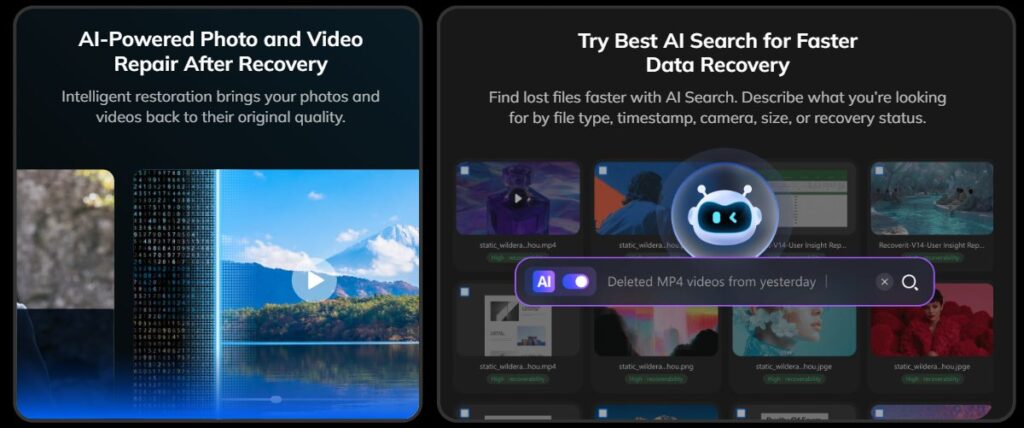
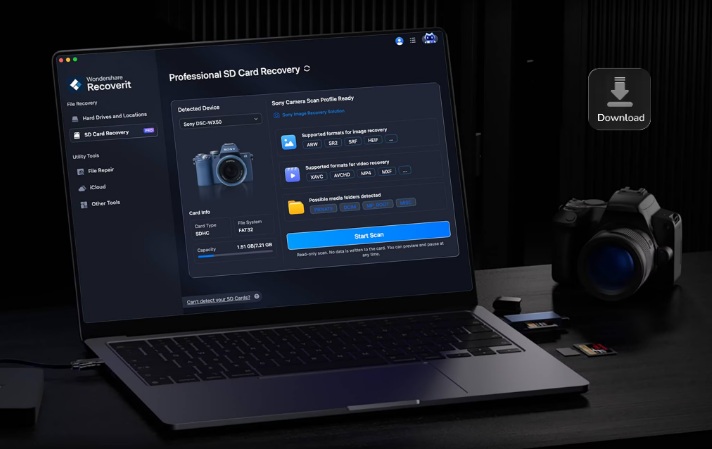
Wondershare Recoverit is a recovery application for Windows and macOS. According to Wondershare’s pages, it targets deleted files, formatted or RAW drives, SD cards, USB drives, internal and external drives, and (in higher tiers) crashed computers via a bootable USB, plus NAS and Linux systems. It also includes features for fixing damaged videos and photos, using AI to find files, and restoring items that were deleted from the Recycle Bin.
Platforms and storage devices (as documented)
- Operating systems: the Windows free-edition page lists Windows 11/10/8.1/8/7/Vista/XP and several Windows Server versions.
- File systems: FAT16/FAT32/exFAT, NTFS, NTFS5, ReFS, HFS, HFS+, APFS, EXT2/3/4, BTRFS and RAW disks.
- Media: HDD, SSD, USB flash drives, SD and CF cards, cameras, drones, action cameras and NAS devices.
Free version and restrictions
Recoverit has a free edition that, per its current Windows page, recovers up to 500 MB. Some older third-party articles say 100 MB, so use the number on Wondershare’s page or in the app. Wondershare’s comparison table lists unlimited recovery size under the paid plan. The text I could access did not make clear which other listed features (BitLocker recovery, NAS/Linux, bootable toolkit, video repair) are paid-only, so check that table before assuming.
Pricing
Wondershare sells monthly, annual, and perpetual plans for Windows (licensed for 2 PCs) and describes a 7-day money-back guarantee. The perpetual plan includes updates within the purchased major version only. The prices I saw on the pricing and free pages were not consistent with each other, so I am not quoting a figure. Check the checkout page for your region.
How it compares with the other nine
- Versus free tools (PhotoRec, TestDisk, DMDE, Windows File Recovery): Recoverit costs money for unlimited recovery, but offers a guided interface, previews and extras in one package. Free tools can match or beat it on raw recovery for some cases but ask more of you.
- Versus paid peers (Disk Drill, EaseUS, Stellar): these are the same type of tool. The main differences are how much data each free version lets you recover (500 MB, 100 MB, 2 GB, or 1 GB, depending on the software), the available plans, and the extra features included. The only honest way to compare is to run each free scan and see what each finds for your drive.
- Versus R-Studio and DMDE: those lean toward technical depth (RAID, imaging, structure reconstruction). Recoverit leans toward ease.
When Recoverit may be a good fit
- You want a guided, preview-before-you-pay workflow.
- You work with camera or drone footage and want video repair options in the same tool.
- You need bootable-media recovery when Windows will not start, and you prefer one vendor’s toolkit.
When a free or open-source alternative may be better
- Your files are on an SD card or damaged drive and you are happy to sort results: PhotoRec.
- You lost a partition: TestDisk.
- If you want to restore deleted files with their original names and folder structure without spending much, DMDE is worth considering.
- You only need a small recent deletion on NTFS: Windows File Recovery or Recuva.
- You have a RAID array or need heavy imaging: R-Studio.
Other things to weigh
Wondershare says its recovery rate is 99.5% based on internal testing. That is a vendor claim I cannot verify, and no tool can promise a result. Several competing vendors publish “Recoverit alternatives” pages criticizing its pricing and file-system handling. These views come from people who may have a financial interest in the products, and I also have a potential financial interest because this article contains an affiliate link. Use the free scan to decide with your own data.
Try the free scan first:
Recoverit V14 — Recover What Matters, Fast. Also, Check out Dr.Fone – Android Data Recovery now.
Free, open-source, freemium and paid: how they differ
| Category | Tools here | What you get | Watch out for |
|---|---|---|---|
| Free, no limit | Windows File Recovery | Official, uncapped | Command line only |
| Free, open source | PhotoRec, TestDisk | No cost, no cap, broad support | Text interface; PhotoRec results often lose names |
| Freemium (free tier, upgrade for more) | Recuva, DMDE, Recoverit, Disk Drill, EaseUS, Stellar | Try before buying; preview | Free caps (differing per vendor) and per-folder limits (DMDE) |
| Paid (demo) | R-Studio | Depth, professional features | Learning curve; check demo limits |
Practical approach: run a free scan with one or two tools. Preview the results. Only buy the paid version if the preview shows that your needed file can be recovered properly and the free version does not let you recover enough data.
Which tool for which scenario?
| Situation | Start with | Then try |
|---|---|---|
| Deleted a file on Windows moments ago | Recuva or Windows File Recovery | A freemium graphical tool |
| Emptied the Recycle Bin | Recuva | Recoverit, Disk Drill, EaseUS, Stellar |
| Formatted an SD card or USB drive | PhotoRec | DMDE, then a paid tool |
| Lost or “unallocated” partition | TestDisk | DMDE’s partition manager |
| Drive shows as RAW | DMDE or a freemium tool | PhotoRec |
| Photos from a camera card | PhotoRec | Disk Drill, Recoverit |
| Windows will not boot | A tool with bootable media (Recoverit, Stellar Pro, R-Studio Emergency) | Pull the drive and scan it from another PC |
| RAID or NAS | R-Studio | DMDE, higher-tier Stellar/EaseUS |
| Drive clicking or disappearing | Stop; see below | Professional lab |
How to improve your chances after accidental deletion
- Stop using the affected drive. Close apps, pause downloads and syncing, and do not save anything to it.
- Check the obvious first: the Recycle Bin, cloud versions (OneDrive and others), File History or other backups.
- Use a different drive for everything. Install the file recovery software on a separate physical drive, not on the drive where your deleted files were stored. If the lost data is on your only computer drive, use another PC or a USB drive (for portable tools such as DMDE or PhotoRec).
- Do not recover onto the same drive. Save recovered files to another physical drive, not another folder on the same disk.
- Scan read-only, preview, then recover. Tools like PhotoRec and DMDE describe read-only access for normal recovery. Preview before restoring.
- Start with the lightest scan. Quick scans first, deep scans if needed.
- Consider imaging a shaky drive first. DMDE, R-Studio, Disk Drill and higher-tier Stellar all offer imaging, so you scan a copy instead of stressing the original.
- Keep what you recover safe, and then restore your backup routine.
What to do when a hard drive becomes slow, unreadable, or starts making unusual sounds
Pay attention to signs such as clicking or grinding noises, the drive suddenly disappearing from your computer, frequent freezes while opening files, or extremely slow performance. These symptoms may indicate a hardware problem. If you hear unusual sounds or receive S.M.A.R.T. health warnings, avoid running unnecessary scans or recovery tools, as additional activity could make the situation worse.
- Stop repeated scans and power cycles. Each attempt can worsen a failing mechanism.
- Do not format, run repair utilities or write to the drive until you understand the risk. Disk Drill cautions that CHKDSK may render some files irrecoverable, so recover first.
- If the drive is detected with the right capacity, a disk image to a healthy drive is safer than scanning the original repeatedly.
- If it is clicking, not detected, or was physically damaged, and the data is irreplaceable, a professional lab is usually safer. Software cannot fix hardware faults. Get a written quote and ask about the lab’s policy on unsuccessful recoveries.
- Do not try to open the drive yourself.
Common mistakes that reduce recovery chances
- Installing file recovery software on the same drive where you want to recover deleted files.
- Saving recovered files back to the same drive.
- Carrying on with your usual computer activities after deleting files instead of taking steps to protect the lost data.
- Formatting or “repairing” a drive before copying data off.
- Running many deep scans on a failing drive.
- Assuming every free tool supports every file system or device.
- Forgetting SSD TRIM and encryption can make recovery unlikely or impossible.
- Trusting unofficial download sites. Use the vendor links above.
Frequently asked questions
1. What is the best deleted file recovery software?
There is no single best. For free recovery on a damaged card or drive, PhotoRec is a strong choice. If you have recently deleted a file by mistake, start with Recuva or Microsoft’s Windows File Recovery tool. For a guided interface with extras, compare the free scans of Recoverit, Disk Drill, EaseUS, and Stellar. For RAID or advanced cases, R-Studio or DMDE.
2. Which of these tools are free?
PhotoRec and TestDisk are free and open source. Windows File Recovery is free from Microsoft. Recuva, DMDE, Recoverit, Disk Drill, EaseUS, and Stellar have free editions with limits. R-Studio is paid with a demo.
3. Can permanently deleted files be recovered?
Often, yes, if the space has not been overwritten, but it is never guaranteed. Your chances of recovering a deleted file depend on the file system, the way it was removed, the type of storage device, and whether new data has been saved since its deletion.
4. Can files be recovered from a formatted drive?
Frequently, with a quick format, since it usually does not erase the data itself. A secure format that overwrites the content, or later writes, can make recovery impossible. Signature-based tools (PhotoRec, DMDE raw mode, deep scans) are the usual route.
5. Is free data recovery software safe?
Download only from the official sources above, because fake download pages exist. Reputable tools scan in read-only mode, but you must still avoid saving to the source drive. Safety also means not running unknown installers.
6. Is Wondershare Recoverit worth considering?
It is worth a free scan if you want a guided tool, especially for camera media or bootable recovery. Compare its free limit, price, and scan results against Disk Drill, EaseUS, and Stellar, and note that free tools may do the job for simple cases. (Affiliate disclosure applies; see above.)
7. Which tool is best for recovering photos?
PhotoRec is free and widely used for camera cards. Disk Drill and Recoverit emphasize photo/video recovery in their paid products. Always save recovered photos to a different drive.
8. Can recovery software recover data from an SSD?
Sometimes, but it is much harder. With TRIM active, deleted data may be erased soon after deletion. Disk Drill and DMDE both describe this limit.
9. What should I do before scanning a failing drive?
Stop, avoid repeated attempts, consider imaging the drive, and consider a professional lab if there are mechanical noises or the data is irreplaceable.
10. Is it safe to install recovery software on the affected drive?
No. Install the recovery software on another drive, and save the restored files to a separate physical storage device to avoid overwriting lost data.
Conclusion and practical recommendations
Deleted file recovery works best when you act calmly and early. The right tool depends on your problem:
- Simple, recent deletion: try Recuva or Windows File Recovery.
- Camera card or damaged file system: PhotoRec; lost partition: TestDisk.
- Structure and folders matter, on a budget: DMDE.
- Prefer a guided interface: run the free scans of Recoverit, Disk Drill, EaseUS and Stellar and judge by what each finds.
- RAID, imaging, or professional work: R-Studio.
- Failing hardware: stop and consider a professional.
If you want to try a guided tool, Wondershare Recoverit is one reasonable option to scan with first (affiliate link, as disclosed above). Whatever you use, recover to a different drive, and set up a backup so you are not here again.
Last checked: October 2026. Prices, free limits, and supported systems change often, so confirm on each vendor’s page before you pay.
Disclosure: This article contains an affiliate link to Wondershare Recoverit. If you purchase through this link, I may earn a commission at no additional cost to you. My recommendations are based on product research and suitability for different recovery needs.
How this article was made: it is based on the vendors’ own documentation and product pages, not 100% hands-on testing. I have not run these all tools on test drives, I test a few and my has problem solved. So I do not quote recovery rates or benchmarks.
Discover more from Jahid Shah
Subscribe to get the latest posts sent to your email.